Sign In to Spotlight Application
After you open the web-based Spotlight application, the app displays the Sign In screen. The Sign In screen displays a message stating "Redirecting to Keycloak for Login" and you are redirected to the Keycloak's login screen for Spotlight.
- Make sure that the Pop-ups and redirects setting is set to Allow in your browser, else the application will not get redirected to Keycloak's login screen.
- Consider that a bank already uses an identity provider such as LDAP or Active Directory (other than Keycloak) to store and manage user information and credentials. In such a case, banks can use Keycloak’s federation capabilities to connect to the existing databases and retrieve the identity information. For more details, refer to User Storage Federation.
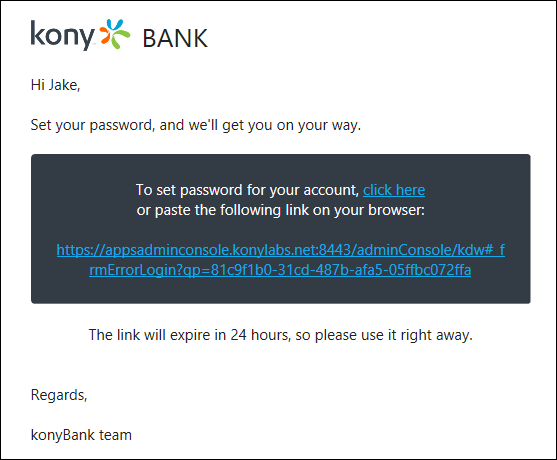
Sign in to the application securely by entering the user ID and password combination. If you are a first-time user, you should have already received an account activation email with your User ID and an activation link to set your password and activate your account to access the application.
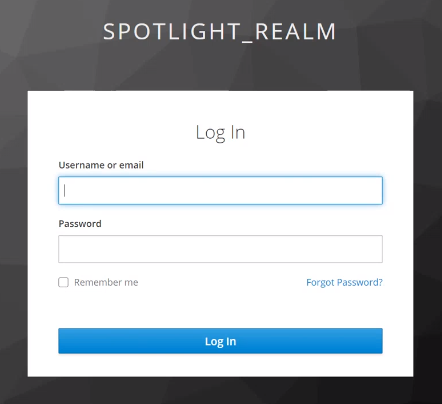
User ID
The user ID is a mandatory field.
Password
The password is mandatory field. The field is case-sensitive and masked while typing, but you can view the password on clicking the eye icon. In case you enter an incorrect password, the app displays an appropriate message.
NOTE: If the credentials (user ID and password) are incorrect or expired, the application displays an appropriate message.
Remember Me
Click the Remember Me check box for the app to remember the session and keep the user logged in even if the browser is closed. A user can disable the Remember Me option from the Realm Settings. For more information, click here.
Forgot Password
Click Forgot Password if you have forgotten your password. However, ensure that you perform the SMTP (Simple Mail Transfer Protocol) configuration in the Email tab of the Realm Settings for this option to work. For more information, click here.
Sign In
Click Sign In. The app displays the dashboard screen.
The account will be locked in case of multiple incorrect password entries. . The number of default invalid attempts can be configured in Keycloak. For more information on setting the default invalid attempts, refer here.
- The app logs off automatically after the session has been inactive and reached the predefined time-out factor in the application. The default session timeout is five minutes.
- The features available to you in the application depends on your role and permissions associated with the role.
You can also retrieve your login credentials in case if you have forgotten your User ID or Password.
In this topic